
5 Hidden Android Auto Settings to Simplify Driving
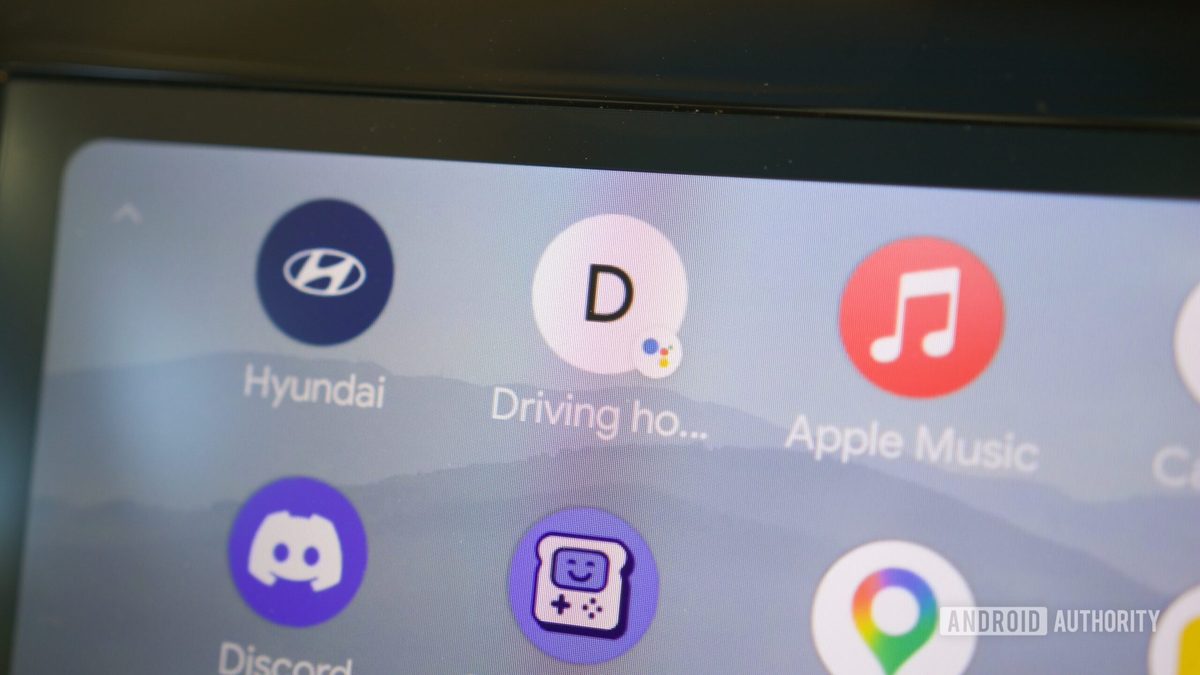
Photo: Android Authority
Quick answer
Android Auto includes hidden settings that optimize multimedia control, navigation, and voice assistant integration for a smoother in-car experience.
Modern vehicles come equipped with advanced infotainment systems, and Android Auto remains one of the most popular platforms for smartphone-to-car integration. However, many users remain unaware of its hidden features that can make the experience even more convenient. For instance, taskbar widgets allow you to control music or podcast playback without leaving the navigation app. Simply enable this feature in your Android Auto settings on your smartphone, and your car’s display will show compact control elements.
Another useful option is launcher customization. In the settings, you can hide unnecessary apps and reorder their display, simplifying access to frequently used programs—especially on smaller car screens. You can also add shortcuts for quick multi-step commands via the Gemini voice assistant. For example, with a single command, you can launch navigation home, turn on the air conditioning, and play your favorite playlist.
For drivers who frequently use navigation and media simultaneously, adjusting screen element placement is highly beneficial. By default, maps appear on the left and the media player on the right, but you can swap their positions in the settings. This is particularly helpful in cars with wide cabins, where the right side of the screen may be less accessible. You can also disable automatic media playback at system startup to manually select your preferred content.
Common questions
- Which Android Auto settings improve multimedia control?
- Enabling widgets in the taskbar allows quick playback control for music or podcasts without switching apps. You can also disable automatic media playback at system startup for better content selection.
- How do I rearrange screen elements in Android Auto?
- In Android Auto settings, you can swap navigation and media player positions to place controls closer to the driver. This is particularly useful for vehicles with large screens.
- How do I use Gemini in Android Auto?
- Gemini enables multi-step voice commands, such as launching navigation, adjusting climate control, and playing music with a single command. These actions can be added to the launcher for instant access.
Dzen feed: /feed/dzen.xml · RSS: /feed.xml