
DuckDuckGo Blocks YouTube Ads via Its Browser
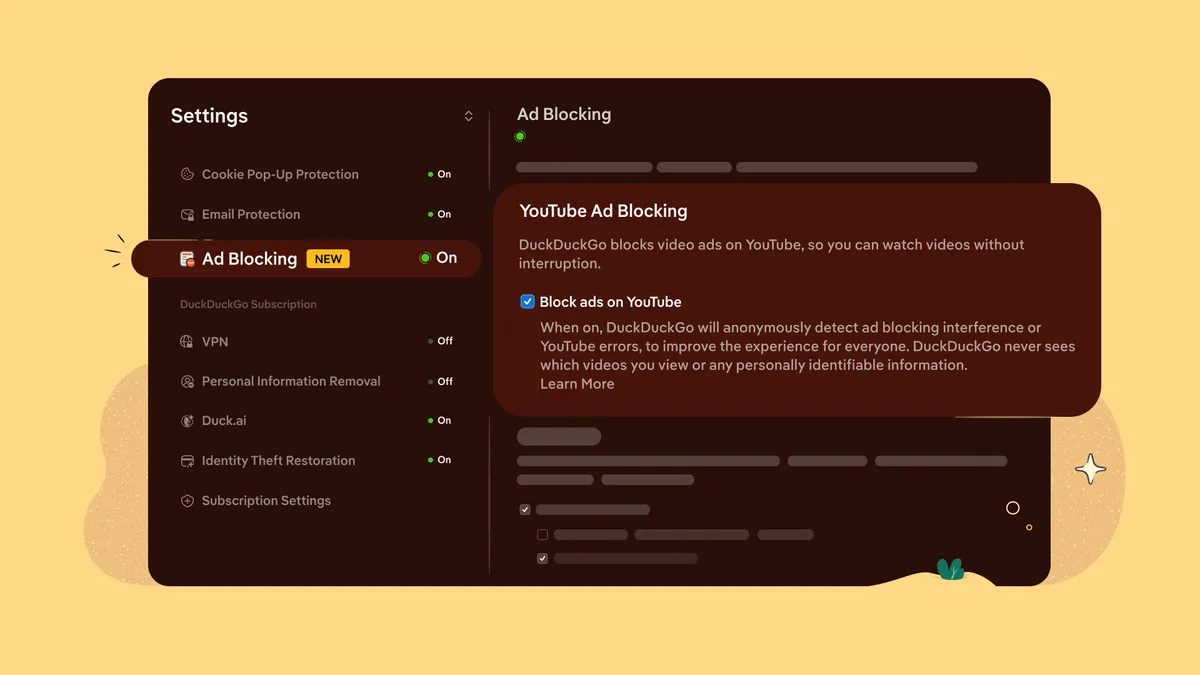
Photo: CNET
Quick answer
DuckDuckGo's browser now blocks most YouTube ads, including pre-rolls and mid-rolls, by default using uBlock Origin filters and its own algorithms.
DuckDuckGo has added a feature to its browser that blocks ads on YouTube. Windows, macOS, and iOS users can now watch videos on the platform without pre-rolls or mid-rolls. Simply open YouTube in the DuckDuckGo browser—no additional settings are required.
Developers note that the tool does not work in the YouTube mobile app*. To use ad blocking, users must access videos through the web version (YouTube.com or m.youtube.com). Android support is coming soon, but the feature can already be enabled manually in the browser settings.
The technology relies on uBlock Origin's community filters and DuckDuckGo's proprietary algorithms, which minimize playback disruptions. While minor buffering delays may occur before video start, ads no longer interrupt playback once the video begins. The feature does not affect watch history or playlists.
It is noted that the blocker does not remove all ads but handles most of them effectively. DuckDuckGo also offers an alternative tool, Duck Player—a built-in YouTube player with enhanced privacy settings.
Common questions
- How does DuckDuckGo block YouTube ads?
- The browser uses uBlock Origin's community filters and DuckDuckGo's proprietary algorithms to block ads on YouTube. The feature is enabled by default when accessing YouTube via the browser.
- Why doesn't ad blocking work in the YouTube app?
- The ad blocker only works in the web version of YouTube because the app uses a closed API that prevents interference with ad display.
- Can ad blocking slow down video loading?
- There may be a slight increase in buffering time before playback starts, but once the video begins, ads no longer interrupt the viewing experience.
Dzen feed: /feed/dzen.xml · RSS: /feed.xml