
How to Quickly Add Photos to iMessage Without Extra Menus in iOS
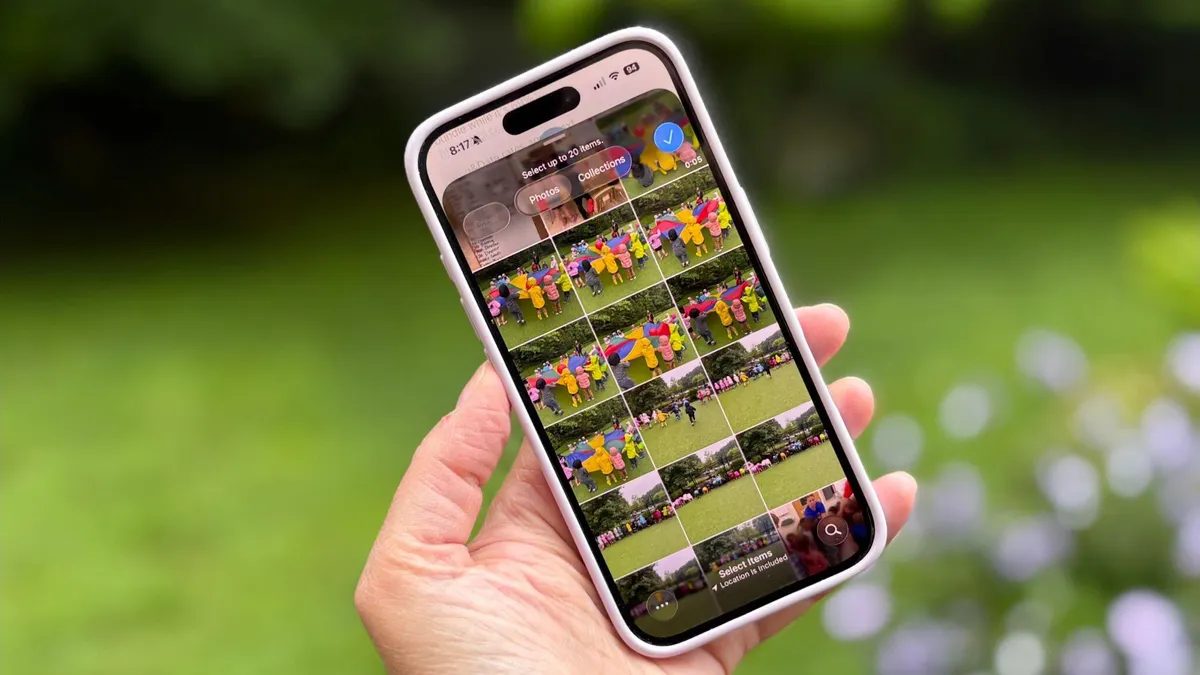
Photo: ZDNet
Quick answer
In iOS, you can quickly add photos to iMessage by holding the '+' button instead of tapping it once. This skips the pop-up menu and takes you directly to recent media files.
Recent iOS updates have introduced changes that complicate some routine actions. For example, sending photos in iMessage now requires an extra tap to open a pop-up menu with selection options, frustrating users accustomed to a faster process.
However, there’s a simple trick to bypass this inconvenience. Instead of tapping the '+' button in the bottom-left corner of the message window once, hold it down. This action immediately grants access to your most recent photos and videos, skipping the intermediate menu. From there, you can scroll up to view your entire media library or use the search function.
Another method to send photos is through the Photos app. Open it, select the desired images, tap 'Share', and choose 'Messages'. Then specify the recipient and send the media files. This approach is convenient if you’re already in the Photos app and want to share multiple images at once.
These small hacks help save time and reduce frustration from unnecessary steps in the iOS interface. While system changes aim to enhance functionality, they sometimes overcomplicate simple actions users have grown accustomed to.
Common questions
- How can I quickly attach a photo to iMessage without extra menus?
- Hold the '+' button in the bottom-left corner of the message window to instantly access recent photos and videos, bypassing the pop-up menu.
- Can I send photos to iMessage via the Photos app?
- Yes, select your photos in the Photos app, tap 'Share', then choose 'Messages' and specify the recipient.
- Why did iOS add extra steps for sending photos?
- Apple aims to simplify access to additional features, but this sometimes complicates basic tasks like sending media files.
Dzen feed: /feed/dzen.xml · RSS: /feed.xml