
How to Enable Hidden Settings Shortcuts on Samsung Phones
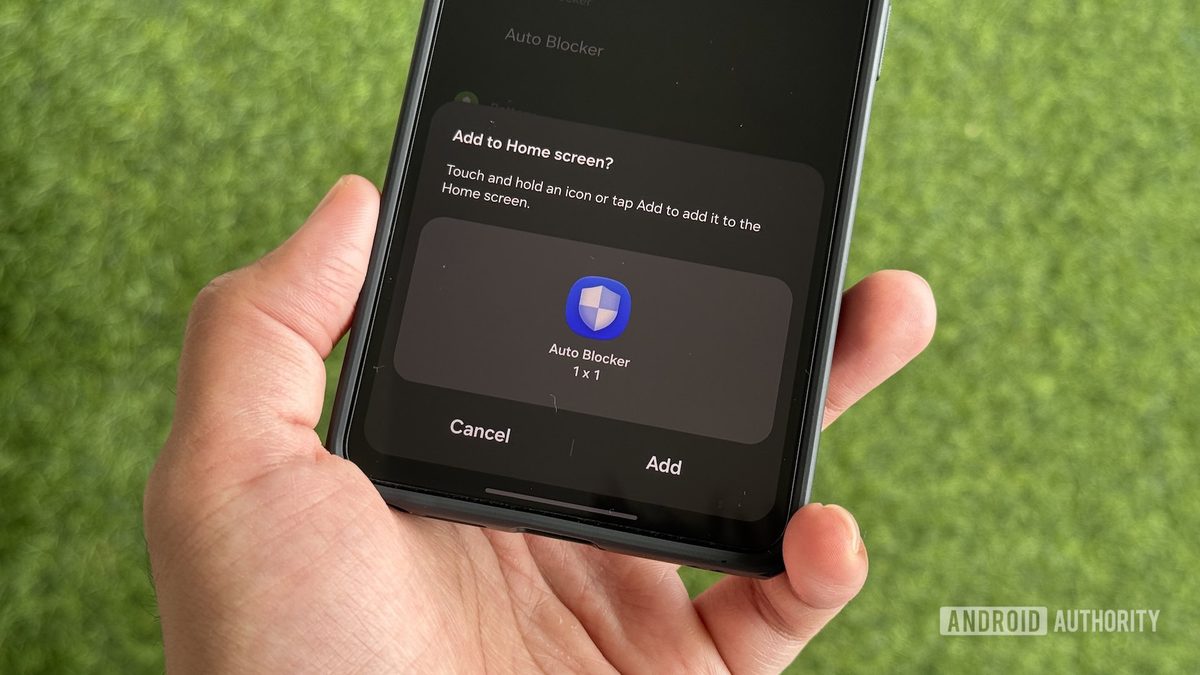
Photo: Android Authority
Quick answer
Samsung Galaxy users can create direct shortcuts to settings via Good Lock and the RegiStar module for faster access.
Samsung Galaxy users often struggle to find specific settings in the expansive system menu. The standard search isn’t always effective, particularly when the exact parameter name is unknown. However, One UI includes a hidden feature that allows creating shortcuts for quick access to frequently used sections.
To activate this feature, install the Good Lock app from Galaxy Store. After installation, download the RegiStar module from the plugins section. In the module settings, enable the 'Allow creation of a shortcut' option to unlock shortcut creation. Then, select the desired settings section in the menu, memorize its name, and create a shortcut via the search bar on the home screen.
Popular shortcuts include notification settings, Wi-Fi, battery, and security parameters. For example, a shortcut for 'Notification history' lets users quickly review missed alerts, while 'Auto Blocker' simplifies APK file installations. Shortcuts for switching default apps or managing deep sleep modes for apps are also useful. For better organization, shortcuts can be grouped into folders on the home screen.
Despite its convenience, the feature has limitations: not all settings pages support direct shortcuts. For instance, accessing 'Connectivity labs' requires creating a shortcut for 'Intelligent Wi-Fi' first, then navigating to the desired parameter. Even with this nuance, shortcuts significantly speed up settings management by reducing the number of required taps.
Common questions
- How do I enable settings shortcuts on Samsung Galaxy?
- Install Good Lock from Galaxy Store, then download the RegiStar module. Enable 'Allow creation of a shortcut' in the module settings and create shortcuts via the settings search menu.
- Which settings can be added as shortcuts?
- You can create shortcuts for any settings section, including Wi-Fi, notifications, battery, security, and more. Some pages may require intermediate navigation.
- Why use settings shortcuts?
- Shortcuts save time by providing instant access to frequently used settings without lengthy menu searches, especially beneficial for users who regularly adjust device parameters.
Dzen feed: /feed/dzen.xml · RSS: /feed.xml