
New iPhone Screen Customization Features in iOS 26: How to Personalize
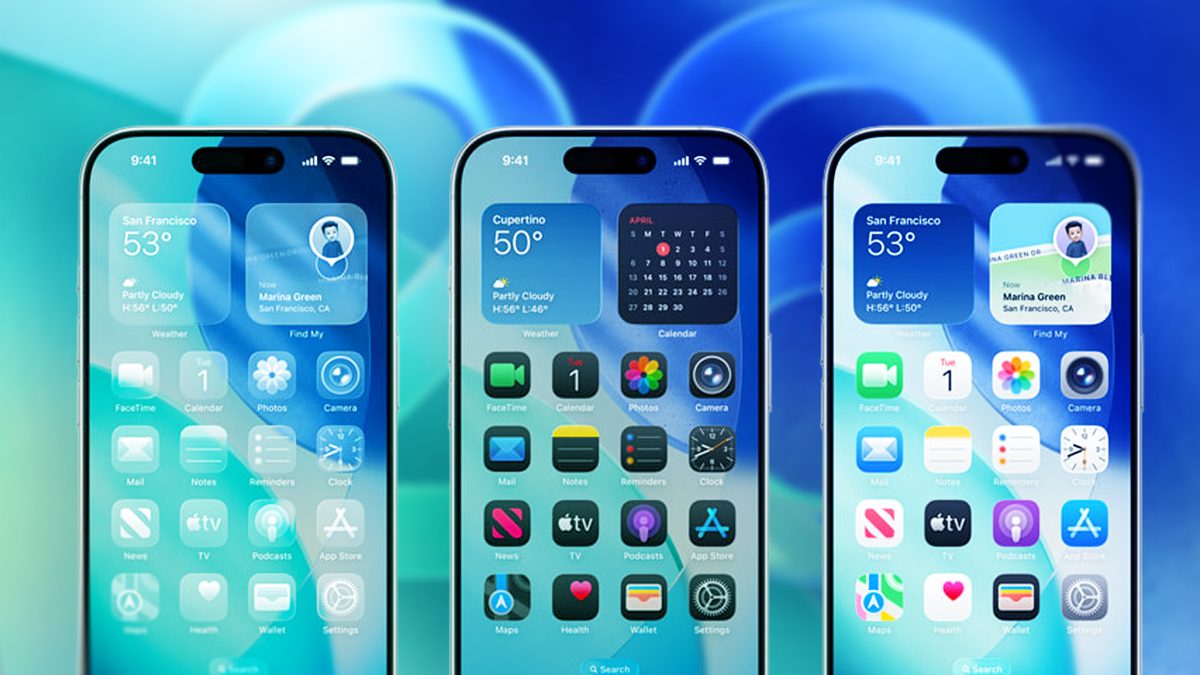
Photo: CNET
Quick answer
iOS 26 expands iPhone home screen customization with features like removing app labels, adjusting icon colors and transparency, and applying color themes to widgets and apps.
With iOS 26, Apple takes iPhone interface personalization even further. The update introduces the Liquid Glass design, adding transparency to elements like app icons and widgets. These enhancements expand on features first introduced in iOS 18, where users gained tools to customize their home screen—removing app labels, changing icon colors, and rearranging layouts.
To remove app labels, long-press an empty area on the home screen to enter edit mode, select 'Edit,' then 'Customize.' In the menu, tap the icon with two differently sized squares—the icons will enlarge, and labels will disappear. Repeat the process to revert to the standard view.
Another standout feature is the ability to change icon and widget colors. In the 'Customize' menu, users can choose from four options: Default, Dark, Clear, and Tinted. Dark mode darkens icon backgrounds, potentially reducing battery consumption. Clear mode makes icons semi-transparent, while Tinted allows selecting any color via a gradient scale or wallpaper color picker.
App placement remains flexible: simply drag icons to desired positions. However, iOS 26 still enforces grid constraints—icons cannot overlap or be placed too closely together. Users can now experiment with unconventional layouts, such as arranging apps along the screen’s edges or grouping them by usage frequency.
Common questions
- How do I remove app labels under icons on iPhone?
- Enter home screen edit mode with a long press on empty space, select 'Edit,' then 'Customize.' Tap the icon with two squares in the top-right corner to hide labels and enlarge icons.
- Can I change app icon colors in iOS 26?
- Yes! iOS 26 offers four options: Default, Dark, Clear, and Tinted. The Dark mode darkens icon backgrounds, Clear makes them semi-transparent, and Tinted lets you pick any color using a gradient scale or wallpaper picker.
- Which apps support icon color changes?
- Apple’s native apps (like Safari and Messages) and some third-party apps (YouTube, Bluesky) support color changes. Others, such as TikTok, remain unaffected.
Dzen feed: /feed/dzen.xml · RSS: /feed.xml